
Burleigh Primary School
Online Safety
Internet Safety
It is important to us that our whole school community is a safe and responsible user of Information Technology.
Children at Burleigh use the Internet on a regular basis as part of their learning. Technology enhances learning and we want to ensure pupils get the most from it, by encouraging responsible online behaviour.
To facilitate this, we have regular E-Safety lessons to remind children of the importance of keeping themselves safe online at school and at home, where they might have more access to a wider range of devices.
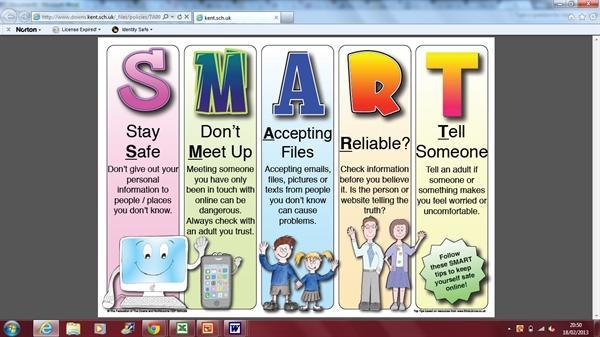
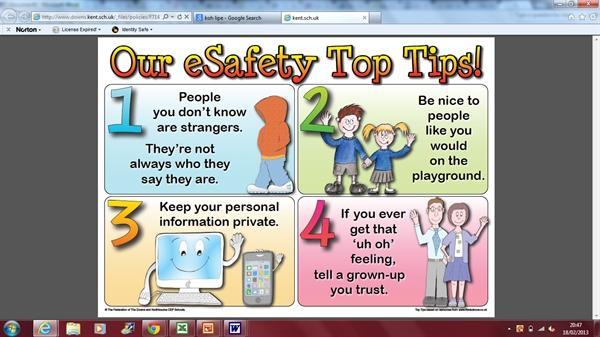
Online Safety in School
At Burleigh we are part of the 'Herts for Learning' filtering and monitoring system, which keeps our children safe when the curriculum requires them to be online. HFL settings are regularly monitored and any concerns raised are logged by SLT.
Throughout the curriculum the children will be using the following sites, within the classroom setting, to support their learning.
- Google Drive - and all apps within
- Various search engines, including Google
- Scratch Online
Children will never interact with anyone outside the school setting. Emails, podcasting and blogging are all contained within the school's monitoring system.
WhatsApp Advice
To stop people from adding you to WhatsApp groups without your permission, you need to update your Group Privacy Settings in the app Help Centre using the following instructions:
- Open WhatsApp and go to Settings (on Android, tap the three dots in the top right; on iOS, tap the "Settings" tab in the bottom right).
- Tap Privacy.
- Scroll down and tap Groups.
- Select one of the following options:
- My Contacts: Only people saved in your address book can add you directly.
- My Contacts Except...: This is the most restrictive setting. It lets you select specific contacts to block from adding you. WhatsApp Help Centre
To block everyone from adding you automatically, choose My Contacts Except..., and then use the Select All icon (or checkmark) in the top right corner to block all of your current contacts at once.
Anyone who cannot add you directly will be prompted to send you a private group invite via chat instead, which you can choose to accept or decline within 72 hours.
Additional Information
You may find the following links useful in supporting your child with E-Safety: